By Alex Byte
I still remember the day I unwrapped my first Google Home device, eager to dive into the world of smart homes. As I began to set it up, I realized that the process wasn’t as straightforward as I had hoped. This experience sparked my interest in creating a beginner’s guide to google home, where I could share my knowledge and help others navigate the setup process with ease. I’ve found that many people struggle with the initial setup, but with the right guidance, it can be a seamless experience. My goal is to provide a comprehensive and accessible guide that makes it easy for anyone to get started with their Google Home device.
In this article, I’ll walk you through the step-by-step process of setting up your Google Home device, from unboxing to voice control. You’ll learn how to troubleshoot common issues, customize your device to fit your needs, and explore the various features that make Google Home an essential part of any smart home. My approach is centered around practical advice and real-world examples, ensuring that you can easily follow along and get the most out of your device. By the end of this guide, you’ll be well on your way to creating a smart home ecosystem that enhances your daily life and makes your home a more comfortable and convenient space.
Table of Contents
- Guide Overview: What You'll Need
- Step-by-Step Instructions
- A Beginners Guide to Google Home
- Navigating Google Home with Ease: 5 Essential Tips for Beginners
- Key Takeaways for a Seamless Google Home Experience
- Unlocking the Power of Smart Homes
- Embracing the Smart Home Revolution
- Frequently Asked Questions
Guide Overview: What You'll Need
Total Time: 1 hour 30 minutes
Estimated Cost: $50 – $100
Difficulty Level: Easy
Tools Required
- Smartphone (with Google Home app)
- Computer (with internet connection)
- Power outlet (for Google Home device)
Supplies & Materials
- Google Home device (e.g., Google Home Mini, Google Home)
- Internet connection (with Wi-Fi network)
- Power cord (for Google Home device)
Step-by-Step Instructions
- 1. First, let’s get started with the unboxing of your Google Home device. Carefully remove the packaging and take a moment to admire the sleek design. You’ll find the Google Home device, a power cord, and a quick start guide in the box. Make sure you have all these components before proceeding.
- 2. Next, plug in your Google Home device using the provided power cord. Find a convenient location for it, like a shelf or counter, where it can be easily heard and accessed. Positioning is key, as you want to ensure the device can pick up your voice commands clearly. Avoid placing it in a corner or against a wall, as this can affect the sound quality.
- 3. Now, download and install the Google Home app on your smartphone or tablet. This app will be your central hub for setting up and controlling your Google Home device. You can find the app in the App Store for iOS devices or the Google Play Store for Android devices. Once installed, open the app and follow the prompts to sign in with your Google account.
- 4. With the app open, tap on “Set up a new device” and follow the step-by-step instructions to connect your Google Home device to your Wi-Fi network. You’ll need to select your network from the list of available options and enter your Wi-Fi password. Make sure you’re connected to the same network on your device for this process to work smoothly.
- 5. After connecting to Wi-Fi, the Google Home app will guide you through the process of configuring your device. This includes setting your location, which helps Google Home provide you with more accurate and relevant information, such as weather forecasts and news updates. You’ll also be asked to agree to the terms of service and choose which services you want to link to your Google Home, such as your Google Calendar or Google Photos.
- 6. Once the setup is complete, you can start using your Google Home device. Begin by saying the wake phrase, “Ok Google” or “Hey Google,” followed by a command or question. For example, you could say, “Ok Google, what’s the weather like today?” or “Hey Google, play some jazz music.” Experiment with different commands to get a feel for what your Google Home can do.
- 7. To further customize your experience, explore the Google Home app more deeply. You can add new devices to your network, such as smart light bulbs or thermostats, and control them with voice commands. You can also set up routines, which allow you to perform multiple actions with a single command. For instance, saying “Good morning” could turn on your lights, start your favorite morning playlist, and brief you on the day’s weather and news.
A Beginners Guide to Google Home
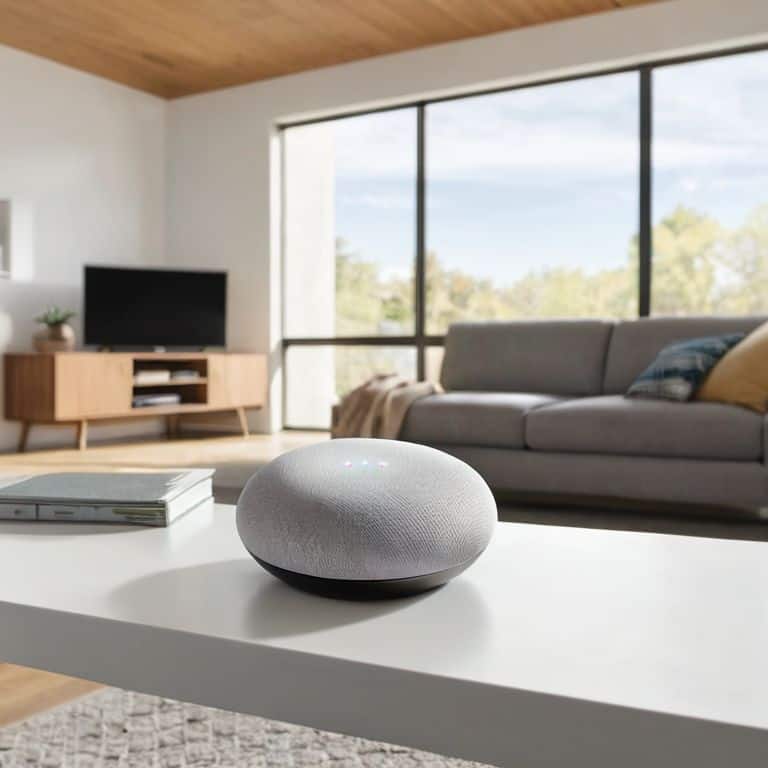
As I delve deeper into the world of Google Home, I’ve discovered some _hidden gems_ that can elevate your smart home experience. For instance, setting up Google Home Mini in different rooms can create a seamless audio experience throughout your house. To take it to the next level, explore the best Google Home compatible devices, such as smart thermostats or security cameras, to create a comprehensive smart home ecosystem.
When it comes to customizing your Google Home experience, Google Home routines examples can be a great starting point. You can create customized routines that cater to your daily habits, such as turning on the lights or playing your favorite music at a specific time. Additionally, setting up Google Home voice match can enhance the overall voice recognition experience, allowing you to access personalized information and control your smart devices with ease.
To further enhance your smart home automation, consider integrating Google Home and Nest devices. This integration can enable features like automated temperature control and energy efficiency. If you encounter any issues, don’t worry – troubleshooting Google Home issues is relatively straightforward, and you can easily find resources online to help you resolve any problems that may arise. By exploring these features and settings, you can unlock the full potential of your Google Home device and create a truly smart home automation experience.
Best Devices for Google Home Routines
To take your Google Home experience to the next level, it’s essential to integrate it with other devices that can enhance its capabilities. I’ve found that smart bulbs, thermostats, and security cameras are perfect for creating customized routines. For instance, you can set up a “Good Morning” routine that turns on the lights, adjusts the thermostat, and briefs you on the day’s schedule. Some of my favorite devices for Google Home routines include Philips Hue smart bulbs and Nest thermostats. These devices seamlessly connect with Google Home, allowing you to control them with simple voice commands.
Google Home Mini Setup Made Easy
To set up your Google Home Mini, start by plugging it into a power outlet and downloading the Google Home app on your smartphone. I still remember the excitement of unwrapping my first Google Home Mini and getting it up and running – it’s amazing how much technology can fit into such a small device. Open the app, and it will guide you through the setup process, which includes connecting your Google Home Mini to your Wi-Fi network and linking it to your Google account.
As you follow the in-app instructions, you’ll be asked to choose your location and select the room where your Google Home Mini will be placed. This information helps Google Assistant provide more accurate and personalized responses to your queries. With these simple steps, you’ll be well on your way to enjoying the convenience and entertainment that Google Home Mini has to offer.
Navigating Google Home with Ease: 5 Essential Tips for Beginners
- Start with a Strong Foundation: Ensure your Google Home device is placed in an open area, at least 8 inches away from any walls or obstructions to guarantee seamless voice recognition
- Voice Control Mastery: Speak clearly and naturally to Google Home, using specific commands like ‘Hey Google, what’s the weather like today?’ to get the most out of your device
- Smart Home Integration: Experiment with various Google Home compatible devices, such as Philips Hue bulbs or Nest thermostats, to create automated routines that simplify your daily life
- Routines and Schedules: Set up customized routines for morning, bedtime, or any other regular activities, allowing Google Home to automate tasks like turning on lights, playing music, or sharing news updates
- Explore and Learn: Regularly visit the Google Home app to discover new features, update your device, and learn about the latest integrations and skills, ensuring you stay at the forefront of smart home technology
Key Takeaways for a Seamless Google Home Experience
Setting up your Google Home device is a straightforward process that can be completed in a few simple steps, allowing you to start exploring its features and integrating it into your daily routine
Choosing the right devices to pair with your Google Home is crucial for creating efficient routines and maximizing its potential, from smart bulbs to thermostats and security cameras
Experimenting with various voice commands and exploring the Google Home app will help you unlock its full capabilities, enabling you to customize your smart home experience and discover new ways to make your life easier and more convenient
Unlocking the Power of Smart Homes
As we embark on this journey to harness the potential of Google Home, remember that the true magic lies not in the device itself, but in the connections it fosters between people, spaces, and ideas – and that’s what makes it a gateway to a future where technology seamlessly weaves into the fabric of our everyday lives.
Alex Byte
Embracing the Smart Home Revolution
As we conclude this beginner’s guide to Google Home, let’s summarize the key points we’ve covered. From the initial setup of your Google Home device to exploring the best devices for Google Home routines, we’ve taken a journey of discovery into the world of smart homes. We’ve learned how to make the most out of Google Home Mini and how to integrate it seamlessly into our daily lives. By following these steps and tips, you’re now well-equipped to unlock the full potential of your Google Home and start experiencing the convenience and innovation it has to offer.
As you continue to explore and learn more about Google Home, remember that the true power of technology lies not just in its features, but in how it enriches our lives. Don’t be afraid to experiment, to try new things, and to push the boundaries of what’s possible. With Google Home by your side, you’re not just controlling your home – you’re opening the door to a smarter, more connected future. So, go ahead, embrace this technology with curiosity and optimism, and watch how it transforms your world.
Frequently Asked Questions
What are the most essential Google Home voice commands I should know to get started?
Ah, the fun begins! To get started with Google Home, you’ll want to know some essential voice commands. Try ‘Ok Google, what’s the weather like?’ or ‘Play some jazz music’ to get a feel for it. You can also ask ‘What can you do?’ to explore more possibilities. Simple commands like ‘Set a timer for 10 minutes’ or ‘Tell me a joke’ are also great ways to break the ice with your new smart companion!
Can I control multiple smart devices with a single Google Home command?
Absolutely, you can control multiple smart devices with a single Google Home command. I’ve done it in my own home, and it’s a game-changer. By setting up routines, you can group devices and actions, then trigger them with a simple voice command, making your smart home experience seamless and intuitive.
How do I troubleshoot common issues with my Google Home device, such as connectivity problems or unresponsive voice commands?
Troubleshooting Google Home issues can be a breeze. For connectivity problems, try restarting your router or checking your Wi-Fi signal strength. If voice commands aren’t working, ensure your microphone is enabled and free from obstruction. You can also try resetting your Google Home device to its factory settings – I’ve had to do this myself, and it’s surprisingly straightforward!